
Team management isn’t always as easy as it looks. Teams run into issues like poor communication, missed deadlines, clashing personalities, and hazy priorities. Those classic pitfalls can slow projects down and frustrate everyone involved. Good news: project management tools are really helpful for steering teams away from those trouble spots. I’m sharing my own first hand experience with team hiccups, along with ways the right tools can make things way smoother for managers and team members alike.
Why Team Management Gets Stuck
Managing a team always sounds simple on the surface: assign tasks, set deadlines, and wait for the results. In practice, things rarely play out that cleanly. I’ve seen competent teams get tripped up because of avoidable mistakes, and most of those boil down to surprisingly common themes.
Misunderstandings pile up when info is scattered across email threads, different messaging apps, or someone’s personal notes. Confusion about who’s doing what, missed steps, and duplicate work can cost more time than you’d expect. A recent McKinsey report even points out that professionals spend nearly 20 percent of their week just tracking down information or colleagues. That’s a lot of wasted energy in the modern workplace.
Besides info overload, team priorities can get muddy when nobody’s tracking what matters most. It gets even trickier during remote or hybrid work, since face-to-face check-ins are less common. These are just a couple of ways that even skilled managers can end up with tangled projects, and it’s surprisingly easy for projects to veer off track without anyone noticing until it’s too late.
Top Team Management Pitfalls That Slow Down Progress
I’ve rounded up the most frequent mistakes that show up in team management, with a look at what actually causes those issues and why they stick around:
- Poor Communication: Team members don’t know when something changes, tasks slip through the cracks, or two people work on the same thing without realizing it.
- Unclear Roles/Responsibilities: People aren’t sure what’s expected of them, or they feel like someone else is already on the job.
- Lack of Transparency: Important files get buried, and progress updates aren’t shared, making it hard to track what’s done and what’s at risk.
- Unrealistic Deadlines: Project timelines don’t match up with the work involved, leaving everyone scrambling at the last minute. Team stress rises and quality tends to suffer.
- Missing Accountability: Nobody really owns mistakes or delays, so the same problems keep happening in future projects.
- Inadequate Feedback Loops: Feedback is vague, slow, or inconsistent, keeping teams from picking up on what’s working (and what isn’t).
These roadblocks aren’t just frustrating for managers; they drag down the whole team. Fresh ideas get lost, people feel less invested, and the final project rarely matches its original potential. They also make meetings less productive because time is wasted rehashing old problems rather than moving work forward.
Where Project Management Tools Actually Make a Difference
There are a lot of project management tools out there. Trello, Asana, Monday.com, Jira, Basecamp, Notion, and ClickUp are just a few options. I’ve used most of them, and no matter the tool, they all share one main goal: cutting through chaos and making teamwork more straight forward.
So, here’s how these apps help teams dodge the usual pitfalls:
- Centralized Information: Team conversations, task lists, deadlines, and files are all in one place. This is pretty handy for remote teams and groups scattered across time zones. Nobody wonders where the latest draft or critical comment lives.
- Transparent Task Assignment: Every task lists exactly who’s on it, what’s expected, and when it’s due. No more guessing games or “I thought someone else was handling it” moments.
- Automated Reminders and Check-Ins: The tool pings you before deadlines, so overdue work is less likely to slip through the cracks. Auto notifications keep people on target without nagging.
- Clear Progress Tracking: Visual dashboards and status updates mean managers and team members always know where things stand on every project.
- Integrated Communication: Most tools include comment threads, tagging, and quick reaction features, so a question doesn’t get buried in someone’s inbox or forgotten in a chat stack.
Tools can’t fix every problem. Sometimes there’s an underlying culture issue or lack of leadership, but for basic organization and transparency, they’re hard to beat. They act as a safety net, catching many of the simple mistakes that snowball into big ones if left unchecked.
Quick Guide: How to Dodge Team Management Pitfalls with Project Tools
It might feel overwhelming to pick up yet another app, especially if your team’s been handling things by email or spreadsheets for years. Here are some steps I’ve personally used to make that transition smoother. I favor monday.com.
If you’re tired of managing projects in your head (or on sticky notes and spreadsheets), monday.com makes it easy to get organized fast. It’s a visual, drag-and-drop workspace where you can track tasks, deadlines, and priorities in one place — so nothing slips through the cracks. Monday.com helps you:
• Plan projects and assign tasks clearly
• Track deadlines and progress at a glance
• Automate reminders and routine follow-ups
• Keep your team (or vendors) aligned in one shared board
It’s beginner-friendly, flexible, and scalable — whether you’re a solo owner or growing a team.
Try monday.com and set up your first workflow in minutes:
Other Helpful Tips
- Set Up Your Team Workspace: Create projects, define tasks, and assign roles right at the start, before real work begins. A clear layout prevents confusion later.
- Centralize Communication: Move chats, file sharing, and updates into the tool so everything is searchable and in one spot. Make it your team’s default place for communication.
- Automate Common Workflows: Take advantage of templates and automation features for recurring tasks, like weekly meetings, routine status updates, or task checklists.
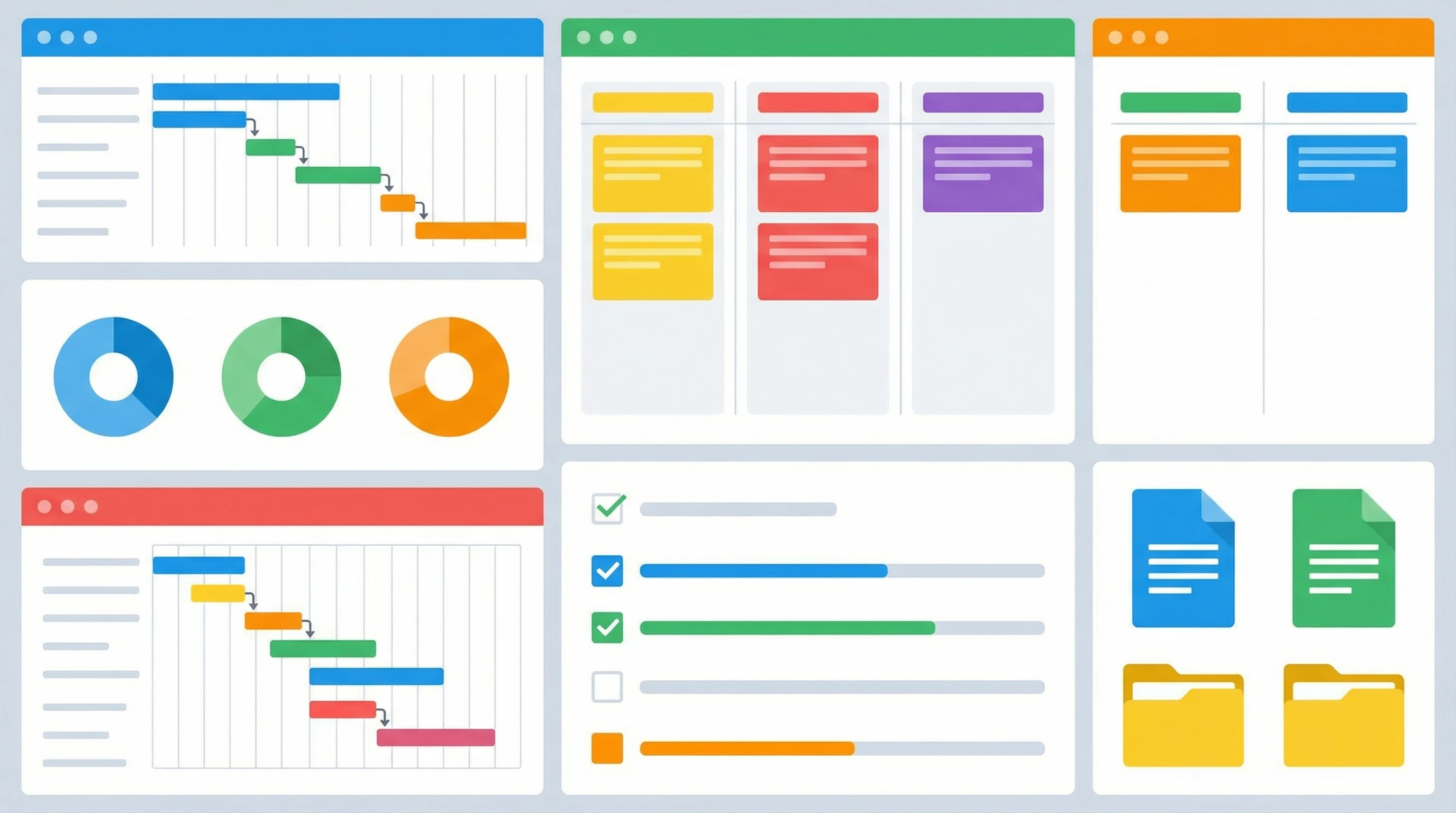
- Keep Things Visual: Dashboards, calendar views, and Gantt charts make it easy to catch bottlenecks and spot who’s overloaded. Most people process visual info faster than text alone.
Sticking to these basics saves a lot of hassle and keeps team members on the same page. It also makes onboarding new folks a lot easier when everything is structured, and there’s a clear record of past work to reference.
Things Worth Considering Before Introducing a Project Tool
Switching your team over to a new system can help, but it’s not magic. There are a few common challenges that show up, especially early on. Here are the main ones and advice for sidestepping them:
- Learning Curve: People get frustrated by new interfaces or too many features. Go slow and start simple: just basic tasks and communication to begin with. Let folks play around before piling on advanced features.
- Consistency: A tool won’t work if people avoid using it. As a manager, regularly checking in and leading by example is really important here. Share your own updates and always refer to tasks in the tool.
- Overcomplication: Some tools can get cluttered fast with too many tags, extra columns, or add-ons. Stick to what’s needed and review your workflow from time to time; clear out clutter often.
- Integration Needs: Does the tool work with the apps you already use, like Slack, Google Drive, or email? Picking something that fits in with your routine is way easier than changing everything else. Smooth integrations encourage daily use.
I’ve seen teams give up after a few weeks because they jumped straight into advanced features and immediately felt lost. Steady, step-by-step adoption works much better. Even if progress feels slow at first, momentum picks up as everyone gets used to the new way of working.
Learning Curve
The start is usually the toughest part. New users might be hesitant to leave behind what they know (like shared spreadsheets or group chats). Scheduling short, hands-on training sessions can really speed up the transition. Some project management platforms offer built-in tutorials and customer support that’s worth using early on. Encourage questions, and don’t be afraid to learn together as a team.
Consistency
Things fall apart quickly if only a few people use the tool while others still rely on scattered emails or old habits. I’ve found that tying updates, feedback, or even celebrations to the tool encourages everyone to stay engaged. Friendly reminders in meetings help, too. Building a habit around the tool is more powerful than any single feature.
Overcomplication
It’s tempting to over organize with tons of labels, templates, and automations right away. I like to trim things back to the basics, using the tool for just a few key processes at the start: who’s assigned, what’s due, and basic project notes. Once everyone’s comfortable, it’s easy to add more features gradually and without causing confusion for users.
Integration Needs
Switching between too many platforms is a huge time drain. Project tools that connect directly to your calendar, doc storage, and chat apps are really convenient. If you’re comparing options, always check the integrations list first. Saving even a few clicks each day adds up over time and keeps everyone working smoothly.
Just because switching project tools can feel bumpy at first doesn’t mean it won’t pay off. The boost in clarity and streamlined workflows usually shows up pretty quickly for most teams once initial hurdles are cleared and the basics are mastered.
Advanced Team Management Tips and Power Features in Project Tools
Once you’ve got the basics down, there are cool features in most project management tools that can save even more time. Here are some advanced uses I’ve found super useful:
Automation Rules: Set up triggers so tasks move automatically as work gets completed, or get alerts when something’s overdue. This reduces manual admin work and lets the tool do the heavy lifting, especially for repetitive processes.
Custom Dashboards: Build visual boards focused on the metrics that matter most, from high-level goals to weekly progress numbers. Managers and team members alike get a clear snapshot at any point during a project.
Time Tracking and Reporting: Some tools include built-in time logs and exportable reports. These help spot patterns, like where delays or bottlenecks are popping up most often, so you can adjust plans sooner.
In-Tool File Sharing and Discussion: Adding comments, upload options, and fun reaction buttons keeps everyone involved and makes feedback feel less formal. It also creates a record of key decisions for future reference.
These features are a good way to adapt as your team grows or takes on bigger projects. I’ve seen small teams double their output by just dialing in their workflow and letting the tool handle the boring stuff.
Real-World Uses: Project Tools Making Team Life Easier
Project management tools aren’t just about keeping managers organized. They can actually change how teams work together, day to day. In my experience, these are the top benefits that stick out:
- Remote Work Coordination: When I worked on a distributed marketing team, Trello boards helped us track each content piece, always knowing who was reviewing what and when deadlines were coming up. Nobody had to dig for the latest version in their inbox again.
- Sales and Customer Support: Using boards and queues in tools like Monday.com keeps client tasks and troubleshooting tickets highly visible; great for service teams who need follow-up reminders.
- Managing Creative Projects: Design teams often juggle lots of iterations and feedback. Tools like Asana’s timeline feature show the full pipeline, helping everyone stay in sync when priorities switch up.
In short, these tools work for a lot more than just software or product teams. Pretty much any group with tasks and deadlines benefits from better transparency and smoother collaboration, no matter the industry or team size.
Frequently Asked Questions: Fixing Team Management Mistakes
Some questions about project management tools come up over and over. Here’s what I run into a lot:
Question: Are project management tools only for big teams?
Answer: Not at all. Even groups of two or three people find value in organizing projects and sharing updates. Many tools offer free versions for small teams or freelancers, making them accessible for nearly any situation.
Question: How do I convince my team to start using a new project tool?
Answer: Showing off clear benefits, like saving time, fewer emails, and smoother workflows, helps get buy-in. Quick “wins” in the first weeks build momentum, too. Highlight how the tool solves specific pain points your team already feels.
Question: What if my team struggles to adopt the tool?
Answer: Start with just the basics. Limit early features, stick to one main workflow, and provide a little training and encouragement. Expanding from there is a lot easier than overwhelming folks on day one. Patience and steady support go a long way.
Choosing the Right Project Tool for Team Management
The “best” tool is the one your team actually likes using. I generally look for a few important basics: clear task assignment, real-time updates, robust search, and easy integration with other apps. Trying out a few on free trials is worth the effort. It’s often the small touches, like how notifications work or how visual the boards feel, that make the biggest difference for daily use. Picking the tool that feels natural pays off in more engagement and fewer headaches down the road.
Project management tools aren’t a cure-all, but they genuinely help teams avoid missteps that come with scattered processes and unclear roles. Cleaner workflows, transparency, and easier collaboration are all big wins, whether you’re running a solo project or coordinating a team in different time zones. My advice? Give one a try and see how much smoother your next project runs. The payoff can be eye-catching once your team gets into the groove!
Here’s a little transparency: Our website contains affiliate links. This means if you click and make a purchase, we may receive a small commission. Don’t worry, there’s no extra cost to you. It’s a simple way you can support our mission to bring you quality “Business Planning content.”
Useful read. In my teams, the wins came from pairing clear roles and rituals with light tooling. A shared roadmap, RACI on key projects, and one source of truth for docs solved most confusion. We cut status meetings by moving updates to async, used templates for kickoffs and retros, and kept alerts quiet so people could focus. The tool matters less than the habits you build around it.
Two quick questions. What is your minimum viable setup for a ten-person team that avoids tool sprawl? Which simple metrics show the tools are helping, for example, cycle time, on-time delivery, or fewer handoff errors?
Marios
Thanks for the comment. Following are answers to your questions.
For a ten-person team, the minimum viable setup is one project management system, one communication channel, and one shared source of truth for documents. A tool like Monday.com can serve as the central hub for tasks, ownership, timelines, and status updates, which eliminates the need for multiple overlapping tools. The goal is not more features, but consistent usage—every task, update, and handoff happens in one place.
The clearest indicators that tools are working are:
Shorter cycle time as work moves faster from start to finish
Improved on-time delivery with fewer last-minute escalations
Fewer handoff errors, such as missed steps or unclear ownership